
Preface
Deploy a GPU computing server for private AI model training. This deployment uses the Ubuntu system as an example.
| Name | Version | Arch |
|---|---|---|
| Ubuntu | 22.04 | x86_64 |
| NVIDIA Drivers | 570.124.06 | x86_64 |
| CUDA11 | 520.61.05 | x86_64 |
| CUDNN | 9.8.0.87 | x86_64 |
⚠️ 注意 Before configuring the service, please check for compatibility issues between versions, otherwise various errors may occur when deploying the training environment!
NVIDIA graphics card driver download CUDA driver version download list CUDNN library version download list
Prepare Ubuntu to install NVIDIA graphics card environment
2.1 Install system-based dependencies
koevn@localhost:~$ sudo apt install -y build-essential dracut-core linux-headers-$(uname -r)2.2 Check if Linux recognizes the NVIDIA graphics card
koevn@localhost:~$ sudo lspci | grep -i nvidia03:00.0 3D controller: NVIDIA Corporation TU104GL [Tesla T4] (rev a1)2.3 Check if Linux Nouveau is disabled
koevn@localhost:~$ sudo lsmod | grep nouveaunouveau 2306048 0mxm_wmi 16384 1 nouveaui2c_algo_bit 16384 1 nouveaudrm_ttm_helper 16384 1 nouveauttm 86016 3 vmwgfx,drm_ttm_helper,nouveaudrm_kms_helper 311296 2 vmwgfx,nouveauvideo 65536 1 nouveauwmi 32768 2 mxm_wmi,nouveaudrm 622592 7 vmwgfx,drm_kms_helper,drm_ttm_helper,ttm,nouveauIf the above information is displayed, it means that the system nouveau is loading. Perform the following operations to disable nouveau
koevn@localhost:~$ sudo cat > /etc/modprobe.d/blacklist-nouveau.conf << EOFblacklist nouveauoptions nouveau modset=0EOFkoevn@localhost:~$ sudo dracut --forcekoevn@localhost:~$ sudo rebootThe reason why we need to disable system nouveau here is because we want to install the official driver provided by NVIDIA, which is closed source, while nouveau is open source. If it is not disabled, the Linux system will load nouveau by default, which will cause a conflict between the two drivers and cause strange problems.
After the system restarts, run the sudo lsmod | grep nouveau command to check if there is any output. If not, the system is complete.
Install NVIDIA Driver
Upload the downloaded NVIDIA driver package to Linux and then install it
koevn@localhost:~$ cd /tmpkoevn@localhost:/tmp$ sudo chmod +x NVIDIA-Linux-x86_64-570.124.06.runkoevn@localhost:/tmp$ sudo ./NVIDIA-Linux-x86_64-570.124.06.run -no-opengl-files -no-nouveau-check
- -no-opengl-files: Do not use the OpenGL dynamic library provided by NVIDIA because the system used is not GUI
- -no-nouveau-check: Skip nouveau check Verify that the NVIDIA driver is installed successfully
koevn@localhost:~$ sudo nvidia-smiTue Apr 8 16:12:06 2025+-----------------------------------------------------------------------------------------+| NVIDIA-SMI 570.124.06 Driver Version: 570.124.06 CUDA Version: 12.8 ||-----------------------------------------+------------------------+----------------------+| GPU Name Persistence-M | Bus-Id Disp.A | Volatile Uncorr. ECC || Fan Temp Perf Pwr:Usage/Cap | Memory-Usage | GPU-Util Compute M. || | | MIG M. ||=========================================+========================+======================|| 0 Tesla T4 Off | 00000000:03:00.0 Off | 0 || N/A 50C P0 25W / 70W | 1MiB / 15360MiB | 9% Default || | | N/A |+-----------------------------------------+------------------------+----------------------+
+-----------------------------------------------------------------------------------------+| Processes: || GPU GI CI PID Type Process name GPU Memory || ID ID Usage ||=========================================================================================|| No running processes found |+-----------------------------------------------------------------------------------------+Install CUDA
According to the CUDA driver version download list,select the system version and architecture, select Download > Download the installation package with the installation type of runfile(local), upload it to Linux and install it.
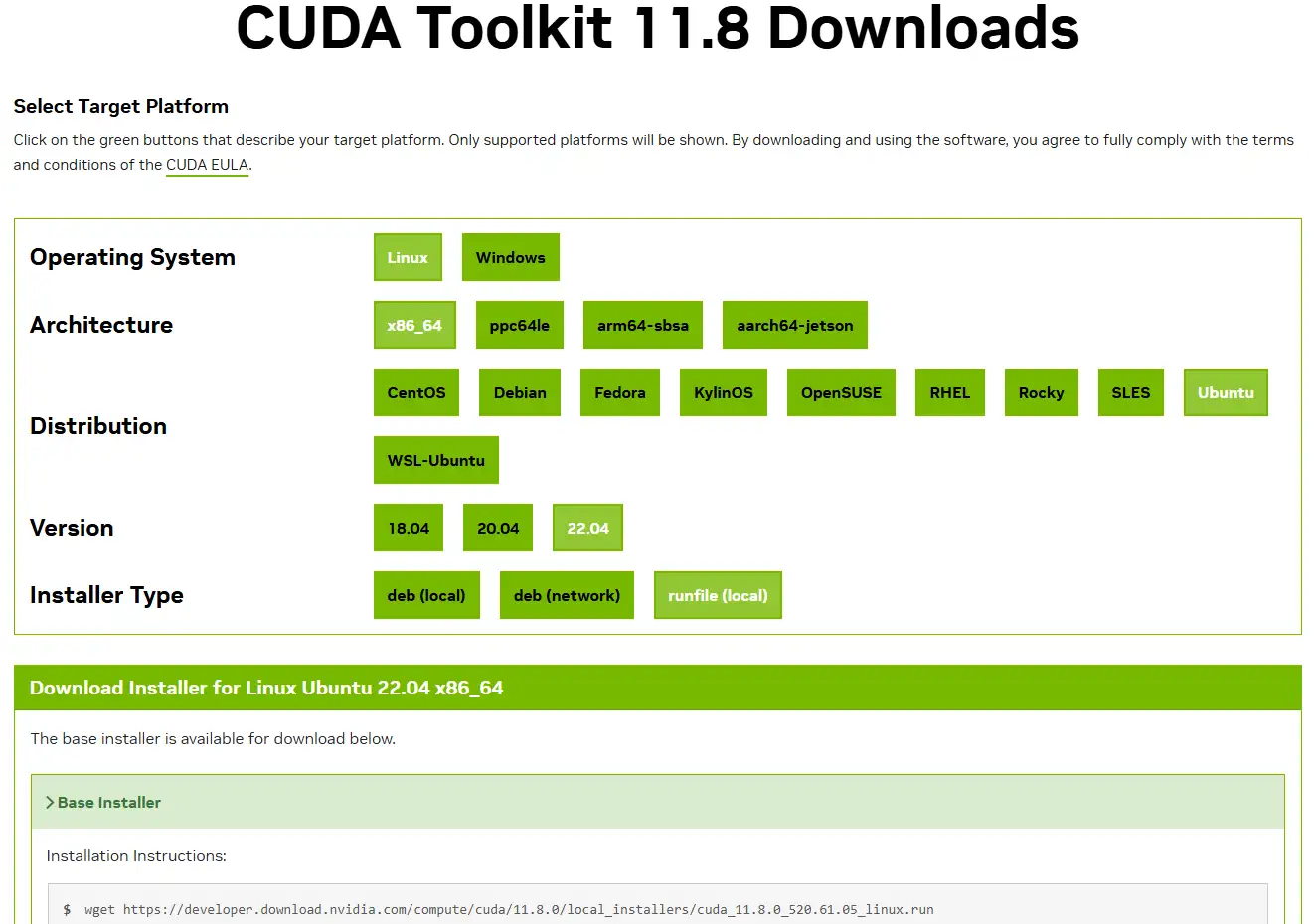
koevn@localhost:/tmp$ wget https://developer.download.nvidia.com/compute/cuda/11.8.0/local_installers/cuda_11.8.0_520.61.05_linux.runkoevn@localhost:/tmp$ sudo chmod +x cuda_11.8.0_520.61.05_linux.runkoevn@localhost:/tmp$ sudo ./cuda_11.8.0_520.61.05_linux.run --no-opengl-libs --toolkitCUDA Installation Steps


⚠️ 注意 Since the NVIDIA graphics driver has been installed before, press the space bar in this step to deselect the graphics driver installation, and then select install
 The installation is complete. Configure the system environment variables according to the prompts
koevn@localhost:~$ sudo cat > /etc/profile.d/cuda.sh << EOFexport PATH=/usr/local/cuda-11.8/bin:$PATHexport LD_LIBRARY_PATH=/usr/local/cuda-11.8/lib64:$LD_LIBRARY_PATHEOFVerify that CUDA is installed successfully
koevn@localhost:~$ sudo nvcc -Vnvcc: NVIDIA (R) Cuda compiler driverCopyright (c) 2005-2022 NVIDIA CorporationBuilt on Wed_Sep_21_10:33:58_PDT_2022Cuda compilation tools, release 11.8, V11.8.89Build cuda_11.8.r11.8/compiler.31833905_0Add CUDNN
Download the corresponding cudnn version and upload it to Linux, and do the following
koevn@localhost:/tmp$ tar -xvf cudnn-linux-x86_64-9.8.0.87_cuda11-archive.tar.xzkoevn@localhost:/tmp$ mv cudnn-linux-x86_64-9.8.0.87_cuda11-archive cudnnkoevn@localhost:/tmp$ cd cudnnkoevn@localhost:/tmp/cudnn$ sudo cp lib/* /usr/local/cuda-11.8/lib64/koevn@localhost:/tmp/cudnn$ sudo cp include/* /usr/local/cuda-11.8/include/koevn@localhost:/tmp/cudnn$ sudo chmod a+r /usr/local/cuda-11.8/lib64/*koevn@localhost:/tmp/cudnn$ sudo chmod a+r /usr/local/cuda-11.8/include/*Verify CUDNN version
koevn@localhost:/tmp/cudnn$ sudo cat /usr/local/cuda/include/cudnn_version.h | grep CUDNN_MAJOR -A 2#define CUDNN_MAJOR 9#define CUDNN_MINOR 8#define CUDNN_PATCHLEVEL 0--#define CUDNN_VERSION (CUDNN_MAJOR * 10000 + CUDNN_MINOR * 100 + CUDNN_PATCHLEVEL)
/* cannot use constexpr here since this is a C-only file */That’s it!